When to Use Split Overrides
Split overrides let you customize vendor payout distributions beyond standard vendor settings. There are three primary use cases:
Getting Started
- Click Vendors.
- Select the Split rules / overrides tab.
- Click Create new split rule.
1. Product-Specific Splits
Override split percentages for certain product variants without changing vendor payout settings.
- Select what the override applies to (e.g. Variant SKU).
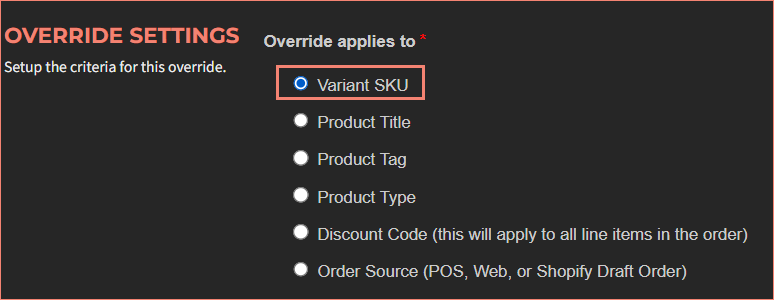
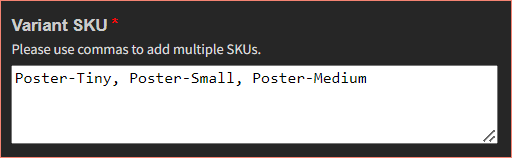
- Enter the variant SKUs separated by a comma.
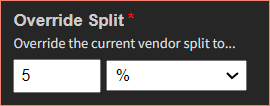
- Enter the Override Split value.
- Click Submit.

2. Vendor Mapping
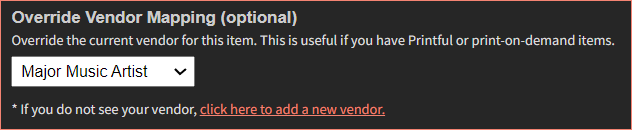
Associate products with different vendors in VendorPayout than they're linked to in Shopify. This is useful when Shopify's vendor field is used by other applications.
- Select the vendor from Override Vendor Mapping.
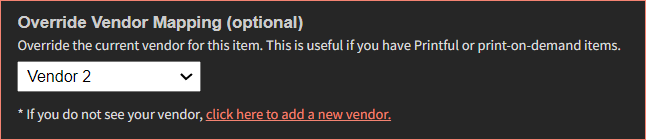
- Click Submit.

3. Multi-Vendor Payouts
Configure products to generate payouts for multiple vendors simultaneously. For example, an artist, manufacturer, and salesperson could each receive different percentages from a single sale.
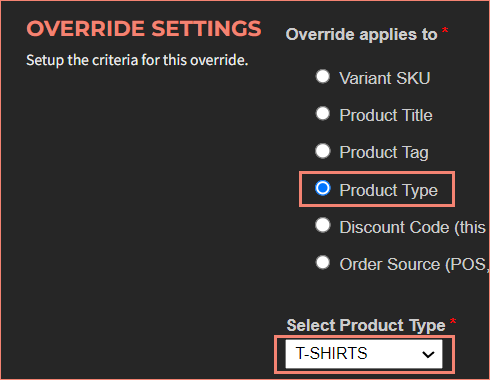
- Select Product Type.
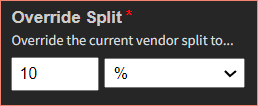
- Enter the Override Split (e.g. 10% for artist).
- Select the vendor from Override Vendor Mapping.
- Check duplicate this line item for multiple splits calculations.

Override Applies To
When creating an override, the "Override Applies To" dropdown includes:
- Variant SKU
- Product Title
- Product Tag
- Product Type
- Discount Code
- Order Sources
Managing Overrides
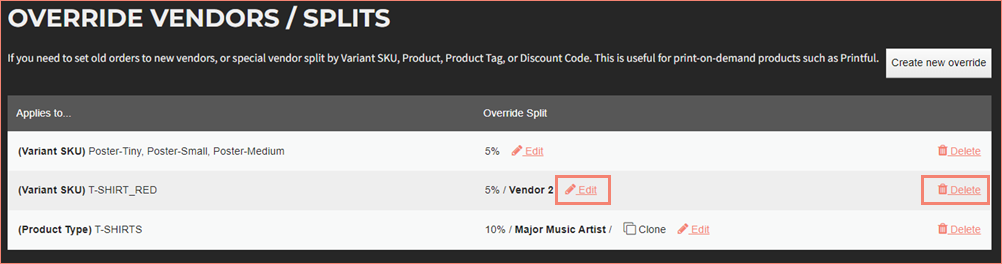
Overrides can be edited or deleted from the Split rules / overrides tab in Vendors.
Need a custom override configuration? Contact support for assistance.