What Are Scheduled Charges?
Scheduled Charges automatically create a monthly manual order for a vendor. They are useful for predictable fees such as rent, booth fees, or other regular adjustments.
Each generated charge becomes a regular manual order in VendorPayout. It appears in your existing orders, reports, and payout calculations, but it does not sync to Shopify.
Create a Scheduled Charge
- Open Orders and click Scheduled Charges.
- Click Add Scheduled Charge.
- Select one vendor, or choose All active vendors to create a separate scheduled charge for every active vendor in your shop. Then enter the order name, product name, optional SKU, price, vendor payout, and your profit.
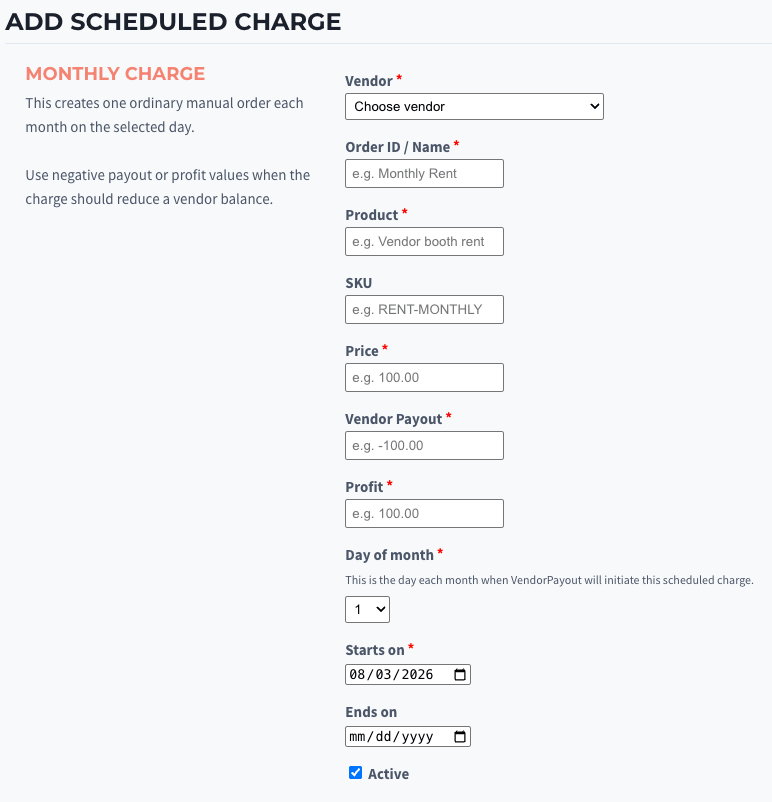
- Choose the Day of month. This is the date each month when VendorPayout initiates the charge. To keep every month consistent, dates are available from the 1st through the 28th.
- Set the start date and, if needed, an end date.
- Leave Active selected and click Save Scheduled Charge.
How Charges Are Created
VendorPayout checks active scheduled charges daily. When a charge is due, it creates one manual order for that month. A charge is created only once per scheduled month, even if the daily check runs more than once.
For a fee that reduces a vendor's balance, enter a negative value for Vendor Payout. Enter values that reflect how you want the charge to affect your own profit.
Manage an Existing Charge
From Orders > Scheduled Charges, you can:
- Edit the vendor, amount, schedule, or dates for future charges.
- Pause a charge to stop future monthly orders without removing its history.
- Resume a paused charge when it should start running again.
- Open History to see each charge that has been generated.
Changes apply to future scheduled charges. Existing generated manual orders remain unchanged and can be managed from the Orders page.
Choosing All active vendors creates individual charges for the vendors who are active when you save the form. Vendors added later are not included automatically.